

Introduction
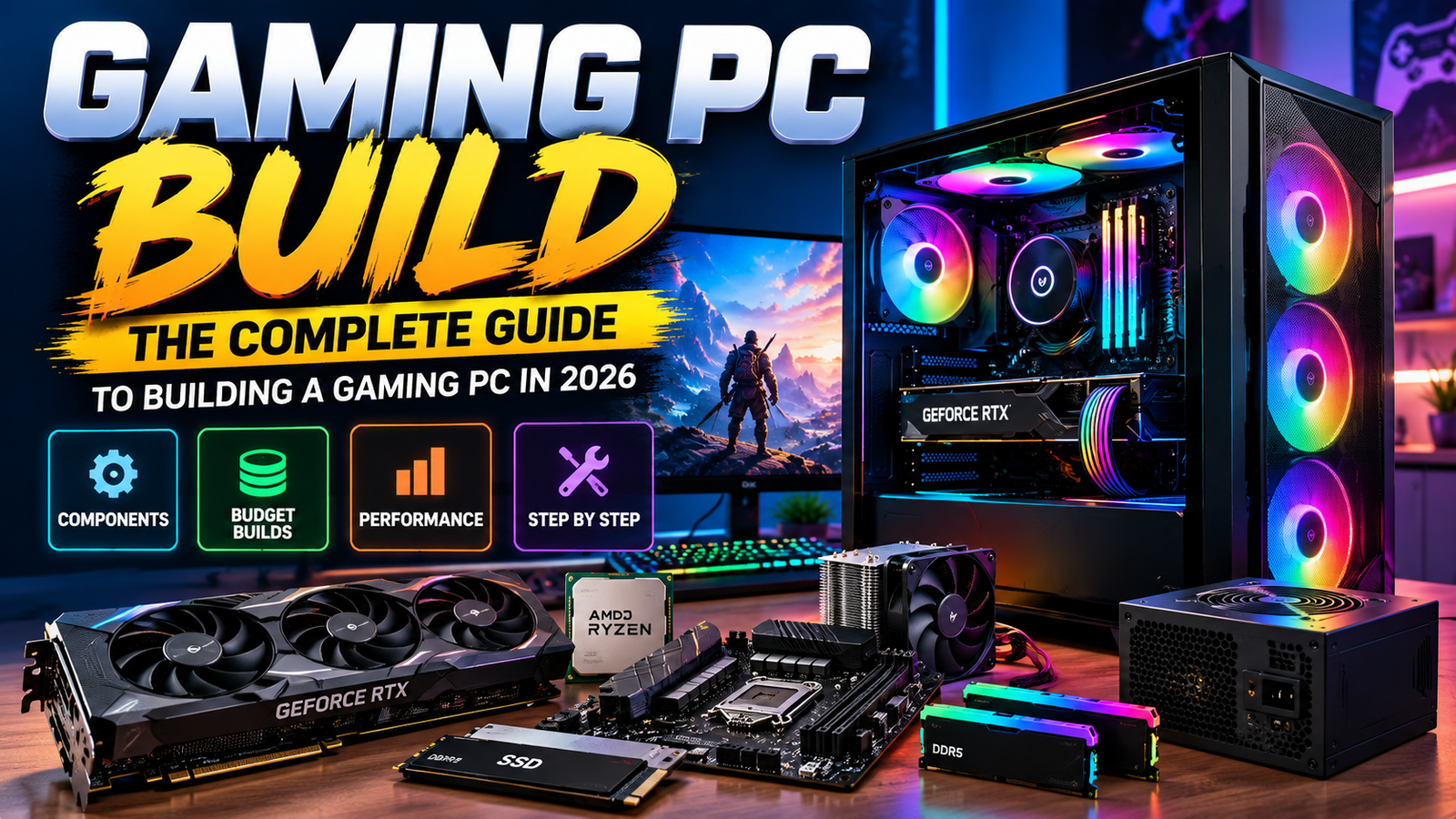
Building your own gaming PC build can be one of the best ways to get the performance you want without spending money on unnecessary hardware. Unlike a pre-built computer, building a PC allows you to choose every component according to your budget, games, resolution, and future upgrade plans.
However, choosing between CPUs, GPUs, RAM, SSDs, motherboards, power supplies, and cooling systems can be confusing, especially if you are building your first PC.
This complete gaming PC build guide will walk you through everything you need to know in 2026—from choosing components and selecting a budget to assembling your PC and preparing it for gaming.
Whether you’re looking for a gaming PC build under ₹50,000, a more powerful gaming PC build under ₹75,000, or a high-end gaming PC build under ₹1 lakh, this guide will help you understand what hardware you actually need.
What Do You Need for a Gaming PC Build?
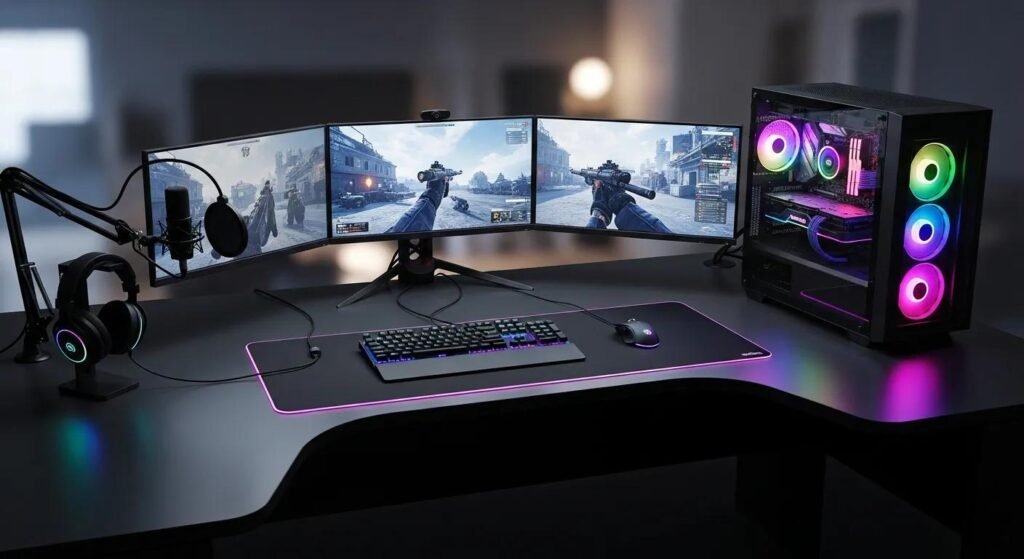
A gaming PC consists of several important components. Each component has a different role, and choosing the right combination is more important than simply buying the most expensive parts.
The main components are:
- CPU (Processor)
- GPU (Graphics Card)
- Motherboard
- RAM
- SSD/Storage
- Power Supply Unit (PSU)
- CPU Cooler
- PC Case
- Case Fans
- Operating System
You also need peripherals such as a monitor, keyboard, mouse, and headphones, although these aren’t technically part of the PC itself.
The most important thing is to maintain a balance between components. For example, pairing a very powerful GPU with an extremely weak CPU can create a CPU bottleneck, preventing your graphics card from reaching its full potential.
How Much Should You Spend on a Gaming PC?
Your budget should depend on the games you want to play and the resolution you plan to use.
A rough way to divide your budget is:
| Budget | Target |
|---|---|
| ₹30,000–₹40,000 | Entry-level gaming |
| ₹40,000–₹50,000 | Budget 1080p gaming |
| ₹50,000–₹75,000 | Strong 1080p / entry 1440p |
| ₹75,000–₹1,00,000 | High-quality 1440p |
| ₹1,00,000+ | High-end gaming |
These figures can change depending on component prices, promotions, and whether you already own peripherals.
1. Best Gaming PC Build Under ₹50,000
A gaming PC build under ₹50,000 should primarily target 1080p gaming.
At this budget, you should focus on getting the best possible GPU while avoiding unnecessary spending on premium motherboards, expensive RGB components, or excessive cooling.
A sensible budget allocation could look something like:
| Component | Approx. Budget |
|---|---|
| CPU | ₹8,000–₹10,000 |
| GPU | ₹15,000–₹20,000 |
| Motherboard | ₹5,000–₹7,000 |
| RAM | ₹4,000–₹5,000 |
| SSD | ₹3,000–₹4,000 |
| PSU | ₹3,000–₹4,000 |
| Case | ₹2,500–₹3,500 |
The exact components should be selected based on current prices rather than blindly following an old parts list.
Who should choose this build?
This budget is suitable for someone who primarily wants:
- 1080p gaming
- Esports games
- Competitive gaming
- Older AAA games
- A good entry-level gaming PC
If your goal is consistently high FPS in demanding modern AAA games, spending more may provide a better experience.
2. Best Gaming PC Build Under ₹75,000
A gaming PC build under ₹75,000 gives you considerably more flexibility.
You can generally target a stronger processor, more capable graphics card, 16GB or 32GB RAM, and a faster SSD.
This budget is particularly attractive for gamers who want to play modern games at 1080p with high settings or move toward 1440p gaming.
A possible budget distribution:
- CPU: ₹10,000–₹14,000
- GPU: ₹25,000–₹32,000
- Motherboard: ₹7,000–₹9,000
- RAM: ₹5,000–₹7,000
- SSD: ₹4,000–₹5,000
- PSU: ₹4,000–₹5,000
- Case and cooling: ₹4,000–₹6,000
The GPU should receive a significant portion of the budget because it has a major influence on gaming performance.
3. Best Gaming PC Build Under ₹1 Lakh
If you’re willing to spend around ₹1 lakh, you can build a significantly more powerful system.
A gaming PC build under ₹1 lakh can be designed for high-refresh-rate 1080p gaming or strong 1440p gaming, depending on the hardware selected.
You should prioritize:
- A capable modern CPU
- A strong dedicated GPU
- 32GB RAM where appropriate
- At least a 1TB SSD
- A reliable PSU
- Good airflow
- A motherboard with useful upgrade options
Don’t spend the entire budget on the GPU while compromising on the PSU, motherboard, cooling, or storage.
A balanced system will generally provide a better long-term experience.
4. Best Gaming PC Build for 1080p Gaming
1080p remains a popular gaming resolution because it doesn’t require extremely expensive hardware.
A gaming PC build for 1080p gaming should prioritize:
- Good GPU performance
- A capable modern CPU
- At least 16GB RAM
- SSD storage
- A high-refresh-rate monitor if you play competitive games
For esports games such as Valorant and Counter-Strike 2, you may benefit more from CPU performance and high frame rates.
For demanding AAA games, the GPU becomes increasingly important.
Who should choose 1080p?
1080p is ideal if:
- You have a limited budget.
- You want high FPS.
- You mainly play competitive games.
- You already own a 1080p monitor.
- You don’t need extremely detailed visuals.
5. Best Gaming PC Build for 1440p Gaming
1440p provides a noticeable improvement in image quality compared with 1080p while generally being easier to run than 4K.
A gaming PC build for 1440p gaming should put more emphasis on GPU performance.
For a good 1440p experience, consider:
- A mid-range or higher-end GPU
- A capable multi-core CPU
- 16GB–32GB RAM
- A fast SSD
- Good cooling
- A 1440p high-refresh-rate monitor
If you’re building a PC specifically for 1440p, avoid overspending on CPU performance while purchasing a GPU that isn’t powerful enough for your target settings.
6. How to Choose the Best CPU for a Gaming PC
The CPU handles game logic, physics, AI, background processes, and many other tasks.
When choosing the best CPU for a gaming PC, don’t look only at the number of cores.
Consider:
- CPU architecture
- Single-core performance
- Multi-core performance
- Clock speeds
- Cache
- Power consumption
- Platform compatibility
- Upgrade options
- Price
For gaming, a moderately priced CPU paired with a strong GPU is often better than spending too much on the processor and leaving too little budget for graphics.
CPU bottleneck
A CPU bottleneck occurs when the processor cannot prepare frames quickly enough for the GPU.
You may notice:
- Low GPU utilization
- CPU usage reaching very high levels
- Unstable FPS
- Poor 1% lows
- Stuttering in CPU-heavy games
The ideal system maintains a reasonable balance between CPU and GPU performance.
7. How to Choose the Best GPU for a Gaming PC
The GPU is arguably the most important component for gaming performance.
When selecting the best GPU for a gaming PC, consider:
- VRAM
- GPU architecture
- Gaming benchmarks
- Power consumption
- Ray-tracing performance
- Upscaling technologies
- Your target resolution
- Monitor refresh rate
- Price
For example, a GPU designed primarily for 1080p gaming doesn’t necessarily make sense for a 4K gaming system.
Choose your GPU based on resolution
1080p: Entry-level to mid-range GPUs can be sufficient.
1440p: A stronger mid-range or high-performance GPU becomes more useful.
4K: You generally need significantly more GPU power.
Don’t choose a graphics card simply because it has more VRAM. Overall GPU performance and the features supported by the architecture also matter.
8. How Much RAM and Storage Do You Need for Gaming?
RAM and storage serve different purposes.
RAM temporarily stores data that the CPU needs to access quickly, while your SSD stores Windows, applications, games, and personal files.
How much RAM?
For a modern gaming PC:
16GB: Still suitable for many gaming systems.
32GB: A strong choice for modern gaming, multitasking, streaming, and long-term use.
64GB: Usually unnecessary for gaming alone but useful for specialized workloads.
For many new builds, 32GB can be a comfortable long-term choice if the budget allows it.
How much storage?
A 1TB SSD is a practical starting point for many gamers.
Modern games can consume a huge amount of storage, so a 2TB SSD can be worthwhile if you maintain a large game library.
SSD vs HDD
An SSD provides substantially faster loading and system responsiveness than a traditional HDD.
For a new gaming PC, an SSD should generally be your primary storage drive.
9. How to Choose a Motherboard, PSU and Cooling System
These components don’t directly determine FPS in the same way as the GPU, but they are essential for building a reliable PC.
Motherboard
When choosing a motherboard, check:
- CPU socket compatibility
- Chipset
- RAM compatibility
- RAM slots
- M.2 slots
- PCIe slots
- USB ports
- Networking
- BIOS features
- Upgrade support
You don’t necessarily need the most expensive motherboard.
Choose one that provides the features and power delivery your CPU actually needs.
Power Supply
Never treat the PSU as a component where you should simply choose the cheapest option.
Your PSU should provide:
- Sufficient wattage
- Good efficiency
- Appropriate connectors
- Reliable protection features
- Quality components
- Compatibility with your GPU
A gaming PC build with an expensive GPU but a poor-quality PSU is a bad combination.
It’s better to purchase a reliable PSU with appropriate capacity than to chase unnecessary wattage.
Cooling
Your CPU and GPU produce heat during gaming.
A good cooling setup helps maintain stable performance.
Your options include:
Air Cooling
Air coolers are generally simple, affordable, and reliable.
Liquid Cooling
Liquid cooling can provide strong thermal performance and may be useful for certain high-performance systems, but it isn’t automatically necessary for every gaming PC.
For a normal gaming build, don’t assume that an expensive liquid cooler will automatically improve gaming FPS.
10. How to Build a Gaming PC Step by Step
Once you’ve purchased all the components, it’s time to assemble the system.
Step 1: Prepare Your Workspace
Work on a clean, flat surface.
Avoid building on carpet if possible and keep your components organized.
Step 2: Install the CPU
Open the motherboard CPU socket and carefully install the processor according to the manufacturer’s markings.
Never force the CPU into the socket.
Step 3: Install RAM
Install the memory modules into the recommended motherboard slots.
For two RAM sticks, check your motherboard manual for the preferred configuration.
Step 4: Install the SSD
Install your M.2 SSD into the appropriate slot and secure it correctly.
Step 5: Install the CPU Cooler
Install the appropriate cooler and ensure it makes proper contact with the processor.
If required, apply an appropriate amount of thermal paste.
Step 6: Prepare the Case
Install the motherboard standoffs if required and carefully place the motherboard inside the case.
Step 7: Install the Power Supply
Install the PSU and route its cables through the appropriate openings.
Step 8: Install the GPU
Insert the graphics card into the appropriate PCIe slot and secure it to the case.
Connect the required power cables.
Step 9: Connect Cables
Connect:
- 24-pin motherboard power
- CPU power
- GPU power
- Storage cables where applicable
- Front-panel connectors
- USB connectors
- Audio connectors
- Case-fan cables
Step 10: First Boot
Connect your monitor and peripherals and turn on the system.
If everything is connected correctly, you should reach the motherboard’s BIOS/UEFI screen.
What Should You Do After Building Your Gaming PC?
Your work isn’t finished after pressing the power button.
You should:
- Enter BIOS/UEFI.
- Check CPU and RAM detection.
- Enable the appropriate memory profile if supported.
- Install Windows.
- Install motherboard/chipset drivers.
- Install GPU drivers.
- Run Windows updates.
- Check temperatures.
- Test RAM and storage.
- Benchmark the system.
- Test several games.
- Monitor temperatures and performance.
This helps confirm that your new gaming PC build is working correctly.
Common Gaming PC Building Mistakes to Avoid
Even experienced builders can make mistakes.
Avoid these common problems:
Buying a powerful GPU with a weak CPU
A poorly balanced system can limit performance.
Choosing a cheap PSU
A low-quality PSU can put your expensive components at risk.
Buying unnecessary RGB components
RGB doesn’t increase FPS.
Ignoring airflow
A powerful PC needs appropriate airflow to maintain temperatures.
Buying more RAM than necessary
64GB isn’t automatically better than 32GB for gaming.
Forgetting motherboard compatibility
Always check CPU socket, chipset, RAM and BIOS compatibility.
Spending too much on the CPU
If gaming is your primary goal, don’t sacrifice GPU performance just to purchase an unnecessarily expensive CPU.
Should You Build a Gaming PC or Buy a Prebuilt?
Both options have advantages.
Building your own PC
Advantages:
- Complete component control
- Easier future upgrades
- Potentially better value
- Better understanding of your hardware
- Ability to customize the system
Disadvantages:
- Requires research
- Assembly takes time
- You are responsible for compatibility
- Troubleshooting can be more difficult
Buying a prebuilt
Advantages:
- Convenient
- Already assembled
- Easier for beginners
- One company may handle system support
Disadvantages:
- Less component control
- Some systems use lower-quality parts
- Upgrades can sometimes be more complicated
- You may pay more for convenience
For someone willing to learn, building your own PC can be a rewarding experience.
How to Future-Proof Your Gaming PC
You can’t completely future-proof a gaming PC because hardware constantly evolves, but you can make smarter choices.
Consider:
- Buying a motherboard with useful upgrade options
- Choosing sufficient PSU capacity
- Getting enough RAM
- Using an SSD
- Choosing a case with good airflow
- Leaving room for additional storage
- Avoiding proprietary components
- Choosing a platform with a reasonable upgrade path
Don’t spend hundreds of dollars—or tens of thousands of rupees—on hardware you don’t actually need today simply because you want your PC to last forever.
Gaming PC Build Checklist
Before purchasing your components, check:
Performance
- CPU matches your GPU
- GPU matches your target resolution
- Enough RAM
- Fast enough storage
Compatibility
- CPU fits motherboard
- RAM is compatible
- Cooler fits CPU/socket
- GPU fits case
- PSU has required connectors
- Motherboard fits the case
Cooling
- CPU cooler installed correctly
- Enough case fans
- Good airflow
- Thermal paste applied correctly
Software
- Windows installed
- GPU drivers installed
- Chipset drivers installed
- BIOS configured
- Games tested
Frequently Asked Questions
Is ₹50,000 enough for a gaming PC?
Yes. A carefully planned gaming PC build under ₹50,000 can provide a good 1080p gaming experience, particularly when you prioritize the GPU and avoid unnecessary premium components.
Is 16GB RAM enough for gaming?
16GB remains adequate for many games, but 32GB can be a better long-term choice if your budget allows it.
Is a gaming PC better than a gaming laptop?
A desktop gaming PC generally offers better upgradeability and performance-per-rupee, while a gaming laptop provides portability.
Should I choose AMD or Intel?
Neither is universally better. Compare current CPU performance, pricing, platform features, power consumption, and upgrade options before purchasing.
Should I choose NVIDIA or AMD for the GPU?
Compare performance, pricing, VRAM, power efficiency, software features, and ray-tracing performance for the specific games you play.
Do I need liquid cooling?
No. Many gaming PCs work perfectly well with a good air cooler. Liquid cooling becomes more relevant for certain high-performance CPUs or when you specifically want its thermal/acoustic characteristics.
How much RAM does a gaming PC need?
16GB is a reasonable baseline for many gaming systems, while 32GB is increasingly attractive for modern games and multitasking.
Is an SSD necessary for gaming?
An SSD is strongly recommended for a modern gaming PC because it provides much faster system and game loading than a traditional HDD.
Conclusion
Building a gaming PC build in 2026 doesn’t mean buying the most expensive components available. The key is creating a balanced system where the CPU, GPU, RAM, storage, motherboard, PSU, and cooling work together according to your budget and gaming requirements.
Whether you’re planning a gaming PC build under ₹50,000, a gaming PC build under ₹75,000, or a gaming PC build under ₹1 lakh, start by deciding your target resolution and games. From there, choose the GPU, select an appropriate CPU, add sufficient RAM and SSD storage, and make sure the motherboard, PSU, case, and cooling system are compatible.
Once your components are selected, carefully assemble the system, install the required software and drivers, test its performance, and optimize it for gaming.
A well-planned PC doesn’t just give you better gaming performance—it also gives you the flexibility to upgrade individual components as your needs change.